
| Exam Code | CKAD |
| Exam Name | Certified Kubernetes Application Developer |
| Vendor | Linux Foundation |
| Total Questions | 48 |
| Last Updated | 26-Oct, 2026 |
- Latest & Verified Questions
- Detailed Explanations
- Regular Updates
- Full-Length Practice Tests
- Boost Your Exam Confidence
PDF Study Materials
Downloadable guides and resources
Practice Tests
Full-length tests with real exam experience
Progress Tracking
Monitor your performance and improvement
Study Anywhere
Access on desktop, tablet, and mobile
Free CKAD Practice Questions
Explore 5 free practice questions for the Linux Foundation CKAD exam and review the answers and explanations to support your preparation.
-
Question 1
Drag & DropContext
You must connect to the correct host . Failure to do so may result in a zero score.
[candidate@base] $ ssh ckad00043
A Deployment needs specific RBAC permissions.
Task
First, find the RBAC permissions needed by the scraper Deployment running in the
cute-panda namespace .
it kubectl logs may help you to find the permissions it needs.
Next, create a new Service Account named scraper in the namespace cute-panda.
Show Answer & Explanation Hide Answer & Explanation
Correct Answer
See the Explanation below:
Explanation
ssh ckad00043
You have two deliverables here:
Figure out what RBAC permissions the scraper Deployment needs (the logs will usually show ''Forbidden'' with the missing verb/resource).
Create a ServiceAccount named scraper in namespace cute-panda (and in practice, you then bind the needed permissions to it and use it in the Deployment so it actually works).
Below is the exact CKAD-style workflow.
1) Find the missing RBAC permissions (use logs + events)
1.1 Identify the pods for the Deployment
kubectl -n cute-panda get deploy scraper
kubectl -n cute-panda get pods -l app=scraper 2>/dev/null || kubectl -n cute-panda get pods
Pick one pod name and check logs:
kubectl -n cute-panda logs deploy/scraper --tail=100
If the pod is crashlooping and logs are short:
POD=$(kubectl -n cute-panda get pods -o jsonpath='{.items[0].metadata.name}')
kubectl -n cute-panda logs '$POD' --previous --tail=200
1.2 Look specifically for ''Forbidden'' lines
Most apps print errors like:
... is forbidden: User 'system:serviceaccount:cute-panda:default' cannot list resource 'pods' in API group '' in the namespace 'cute-panda'
or cannot get resource 'configmaps'...
or cannot watch ...
If you don't see it in logs, check events:
kubectl -n cute-panda get events --sort-by=.lastTimestamp | tail -n 30
1.3 Extract verb/resource/apiGroup from the error
From a typical Kubernetes RBAC ''forbidden'' message, capture:
verb: get/list/watch/create/update/patch/delete
resource: pods, configmaps, secrets, deployments, etc.
apiGroup: '' (core), apps, batch, etc.
namespace: cute-panda (this is a namespaced permission if it's a Role)
You may have multiple ''cannot ...'' lines you need to allow all of them.
2) Create the ServiceAccount scraper (required by the task)
kubectl -n cute-panda create serviceaccount scraper
kubectl -n cute-panda get sa scraper
3) Create the RBAC objects to grant the needed permissions
The task says ''A Deployment needs specific RBAC permissions'' --- in CKAD, that usually means: Role + RoleBinding (namespaced) bound to your new ServiceAccount.
3.1 Create a Role (template you fill from the log output)
Create scraper-role.yaml:
cat <<'EOF' > scraper-role.yaml
apiVersion: rbac.authorization.k8s.io/v1
kind: Role
metadata:
name: scraper-role
namespace: cute-panda
rules:
# EXAMPLE ONLY: replace these rules with what your logs show
- apiGroups: ['']
resources: ['pods']
verbs: ['get','list','watch']
EOF
Apply it:
kubectl apply -f scraper-role.yaml
3.2 Bind the Role to the ServiceAccount
kubectl -n cute-panda create rolebinding scraper-rb \
--role=scraper-role \
--serviceaccount=cute-panda:scraper
Verify:
kubectl -n cute-panda get role scraper-role
kubectl -n cute-panda get rolebinding scraper-rb -o yaml
4) Update the Deployment to use the new ServiceAccount (so it actually works)
Check current SA (likely default):
kubectl -n cute-panda get deploy scraper -o jsonpath='{.spec.template.spec.serviceAccountName}{'\n'}'
Patch it to use scraper:
kubectl -n cute-panda patch deploy scraper -p '{'spec':{'template':{'spec':{'serviceAccountName':'scraper'}}}}'
Rollout:
kubectl -n cute-panda rollout status deploy scraper
Re-check logs to confirm RBAC errors are gone:
kubectl -n cute-panda logs deploy/scraper --tail=100
-
Question 2
Drag & DropYou must connect to the correct host . Failure to do so may result in a zero score.
[candidate@base] $ ssh ckad00032
The Pod for the Deployment named nosql in the haddock namespace fails to start because its Container runs out of resources.
Update the nosql Deployment so that the Container :
requests 128Mi of memory
limits the memory to half the maximum memory constraint set for the haddock namespace
Show Answer & Explanation Hide Answer & Explanation
Correct Answer
See the explanation below:
Explanation
Goal: fix nosql Deployment in haddock so the container stops OOM’ing by setting:
memory request = 128Mi
memory limit = half of the namespace’s maximum memory constraint
You must do this on the correct host.
0) Connect to the correct host
ssh ckad00032
1) Confirm the failing Deployment / Pods
kubectl -n haddock get deploy nosql
kubectl -n haddock get pods -l app=nosql 2 > /dev/null || kubectl -n haddock get pods
If pods are crashing, check why (you’ll likely see OOMKilled):
kubectl -n haddock describe pod < pod-name >
2) Find the maximum memory constraint set for the haddock namespace
In CKAD labs, this is commonly enforced by a LimitRange (max memory per container). Sometimes it can also be a ResourceQuota.
2A) Check LimitRange (most likely)
kubectl -n haddock get limitrange
kubectl -n haddock get limitrange -o yaml
Extract the max memory value quickly:
MAX_MEM=$(kubectl -n haddock get limitrange -o jsonpath= ' {.items[0].spec.limits[0] .max.memory} ' )
echo " Namespace max memory constraint: $MAX_MEM "
2B) If no LimitRange exists, check ResourceQuota
kubectl -n haddock get resourcequota
kubectl -n haddock describe resourcequota
If quota is used, you’re looking for something like limits.memory (but the question wording “maximum memory constraint” usually points to LimitRange max.memory).
3) Compute “half of the max memory constraint”
Run this small snippet to compute HALF in Mi (handles Mi and Gi):
HALF_MEM=$(python3 - < < ' PY '
import os, re
q = os.environ.get( " MAX_MEM " , " " ).strip()
m = re.fullmatch(r " (\d+)(Mi|Gi) " , q)
if not m:
raise SystemExit(f " Cannot parse MAX_MEM= ' {q} ' . Expected like 512Mi or 1Gi. " )
val = int(m.group(1))
unit = m.group(2)
# convert to Mi
mi = val if unit == " Mi " else val * 1024
half_mi = mi // 2
print(f " {half_mi}Mi " )
PY
)
echo " Half of max: $HALF_MEM "
Example: if MAX_MEM=512Mi → HALF_MEM=256Mi
Example: if MAX_MEM=1Gi → HALF_MEM=512Mi
4) Update the nosql Deployment (DO NOT delete it)
First, get the container name (Deployment may have a custom container name):
kubectl -n haddock get deploy nosql -o jsonpath= ' {.spec.template.spec.containers[*].name}{ " \n " } '
Now set resources (this updates the Deployment in-place):
kubectl -n haddock set resources deploy nosql \
--requests=memory=128Mi \
--limits=memory=$HALF_MEM
5) Ensure the update rolls out successfully
kubectl -n haddock rollout status deploy nosql
6) Verify the pod has the right requests/limits
kubectl -n haddock get deploy nosql -o jsonpath= ' {.spec.template.spec.containers[0].resources}{ " \n " } '
kubectl -n haddock get pods
Pick the new pod and confirm:
kubectl -n haddock describe pod < new-pod-name > | sed -n ' /Requests:/,/Limits:/p '
You should see:
Requests: memory 128Mi
Limits: memory < HALF_MEM >
If rollout fails (common cause)
If you accidentally set a limit above the namespace max, pods won’t start. Check events:
kubectl -n haddock describe deploy nosql
kubectl -n haddock get events --sort-by=.lastTimestamp | tail -n 20
-
Question 3
Drag & DropReferto Exhibit.
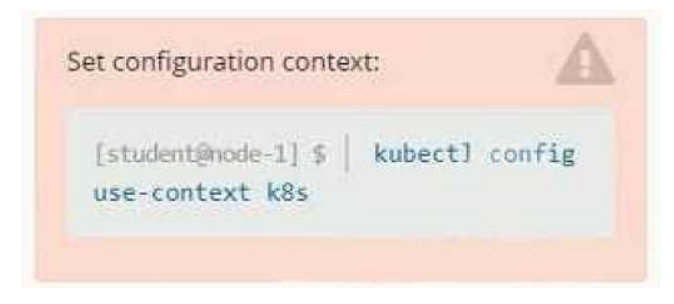
Context Your application’s namespace requires a specific service account to be used. Task Update the app-a deployment in the production namespace to run as the restricted service service account. The service account has already been created.
Show Answer & Explanation Hide Answer & Explanation
Correct Answer
See the solution below.
Explanation
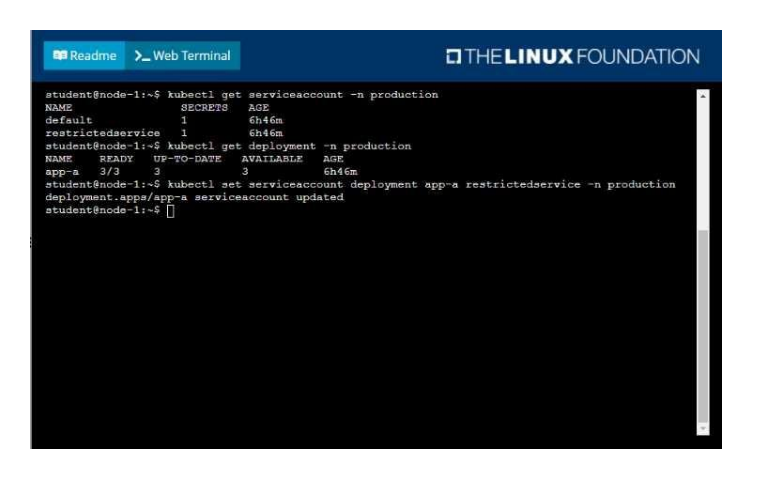
-
Question 4
Drag & DropRefer to Exhibit.
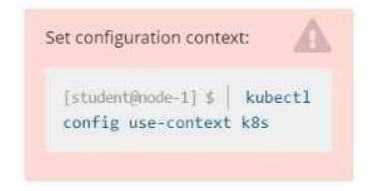
Set Configuration Context:
[student@node-1] $ | kubectl
Config use-context k8s
Context
A web application requires a specific version of redis to be used as a cache.
Task
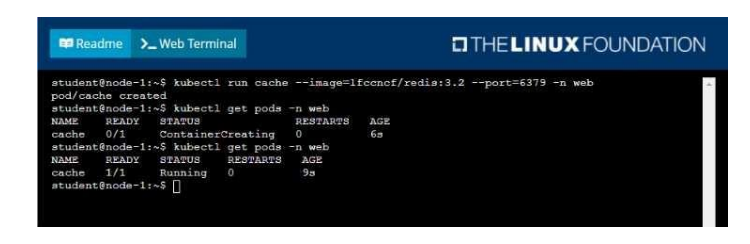
Create a pod with the following characteristics, and leave it running when complete:
• The pod must run in the web namespace.
The namespace has already been created
• The name of the pod should be cache
• Use the Ifccncf/redis image with the 3.2 tag
• Expose port 6379
Show Answer & Explanation Hide Answer & Explanation
Correct Answer
See the solution below.
Explanation
-
Question 5
Single answerWhich Kubernetes object is designed to maintain a desired number of identical Pods?
-
Option A:Correct
ConfigMap
-
Option B:Correct
ReplicaSet
-
Option C:Correct
Service
-
Option D:Correct
Namespace
Show Answer & Explanation Hide Answer & Explanation
Correct Answer: B
Explanation
A ReplicaSet ensures the specified number of Pod replicas are always running.
-