
Exam Overview
| Exam Code | MO-200 |
| Exam Name | Microsoft Excel (Excel and Excel 2019) |
| Vendor | Microsoft |
| Total Questions | 35 |
| Last Updated | 26-Oct, 2026 |
Why CertsPoint?
- Latest & Verified Questions
- Detailed Explanations
- Regular Updates
- Full-Length Practice Tests
- Boost Your Exam Confidence
PDF Study Materials
Downloadable guides and resources
Practice Tests
Full-length tests with real exam experience
Progress Tracking
Monitor your performance and improvement
Study Anywhere
Access on desktop, tablet, and mobile
Secure Payment
Privacy Protected
Money Back Guarantee
Free MO-200 Practice Questions
Explore 5 free practice questions for the Microsoft MO-200 exam and review the answers and explanations to support your preparation.
-
Question 1
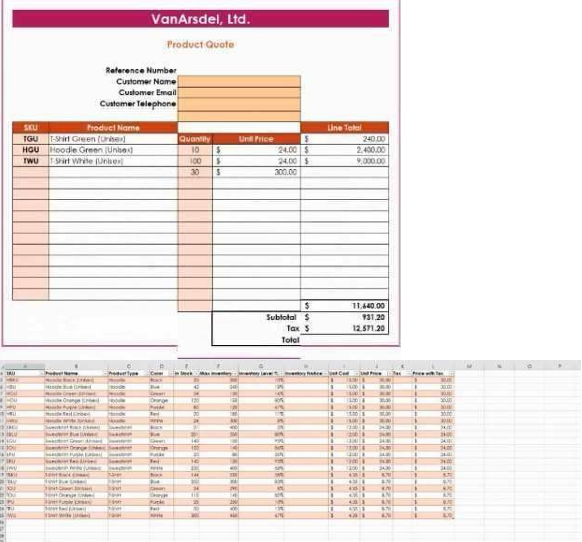
Drag & DropYou are updating the sales spreadsheet for an online clothing store. On the "Quote’’ worksheet move the cells E8:F32 up to correct the alignment by deleting cells E7:F7
Show Answer & Explanation Hide Answer & Explanation
Correct Answer
Explanation
Select and press delete on the home tab.
-
Question 2
Drag & DropOn the ‘’Prices’’ worksheet, apply the Title style to cell A1.
Show Answer & Explanation Hide Answer & Explanation
Correct Answer
Explanation
Home Tab/ Styles group/ cell styles
-
Question 3
Drag & DropOn the ‘’Orders’’ worksheet, filter the table data to display only the orders from ‘’Alpine SKI House.’’
Show Answer & Explanation Hide Answer & Explanation
Correct Answer
Explanation
On the data tab, click filter. Display only alpine.
-
Question 4
Drag & DropQuestion:4 On the ‘’Prices’’ worksheet, in the ‘’Tax column, enter a formula that multiples the value in the ‘’Unit Price’’ column by cell L2.
Show Answer & Explanation Hide Answer & Explanation
Correct Answer
Explanation
=_*_
-
Question 5
Drag & DropQuestion:5 Answer: Check the Solution below. On the ‘’Prices’’ worksheet, in the ‘’inventory Notice’’ column, use a function to display ‘’Low’’ if the ‘’ inventory Level % is below 15%. Otherwise, leave the ‘’Inventory Notice’’ blank.
Show Answer & Explanation Hide Answer & Explanation
Correct Answer
Explanation
=IF(inventory level<15%), "low", ""). Select and drag to apply to other rows