
Exam Overview
| Exam Code | UiPath-SAIAv1 |
| Exam Name | UiPath Specialized AI Associate Exam |
| Vendor | UiPath |
| Total Questions | 250 |
| Last Updated | 26-Oct, 2026 |
Why CertsPoint?
- Latest & Verified Questions
- Detailed Explanations
- Regular Updates
- Full-Length Practice Tests
- Boost Your Exam Confidence
PDF Study Materials
Downloadable guides and resources
Practice Tests
Full-length tests with real exam experience
Progress Tracking
Monitor your performance and improvement
Study Anywhere
Access on desktop, tablet, and mobile
Secure Payment
Privacy Protected
Money Back Guarantee
Free UiPath-SAIAv1 Practice Questions
Explore 5 free practice questions for the UiPath UiPath-SAIAv1 exam and review the answers and explanations to support your preparation.
-
Question 1
Single answerWhat is OCR (Optical Character Recognition)?
-
Option A:Correct
OCR is a document classification method.
-
Option B:Correct
OCR is a method that reads text from images, recognizing each character and its position.
-
Option C:Correct
OCR is a platform that enables you to do text-to-speech and speech-to-text.
-
Option D:Correct
OCR is a tool used to interpret information extracted from documents.
Show Answer & Explanation Hide Answer & Explanation
Correct Answer: B
Explanation
Optical Character Recognition (OCR) is a method used to convert different types of documents (PDFs,
scanned paper documents, images) into editable and searchable data by recognizing characters and
their positions.
OCR is vital in Document Understanding to digitize unstructured data from images and scanned docs.
UiPath Documentation Reference:
OCR Engines in Document Understanding -
-
Question 2
Single answerA developer configured the UI Automation Project Settings and the Properties of a Click activity as
shown in the following exhibits:
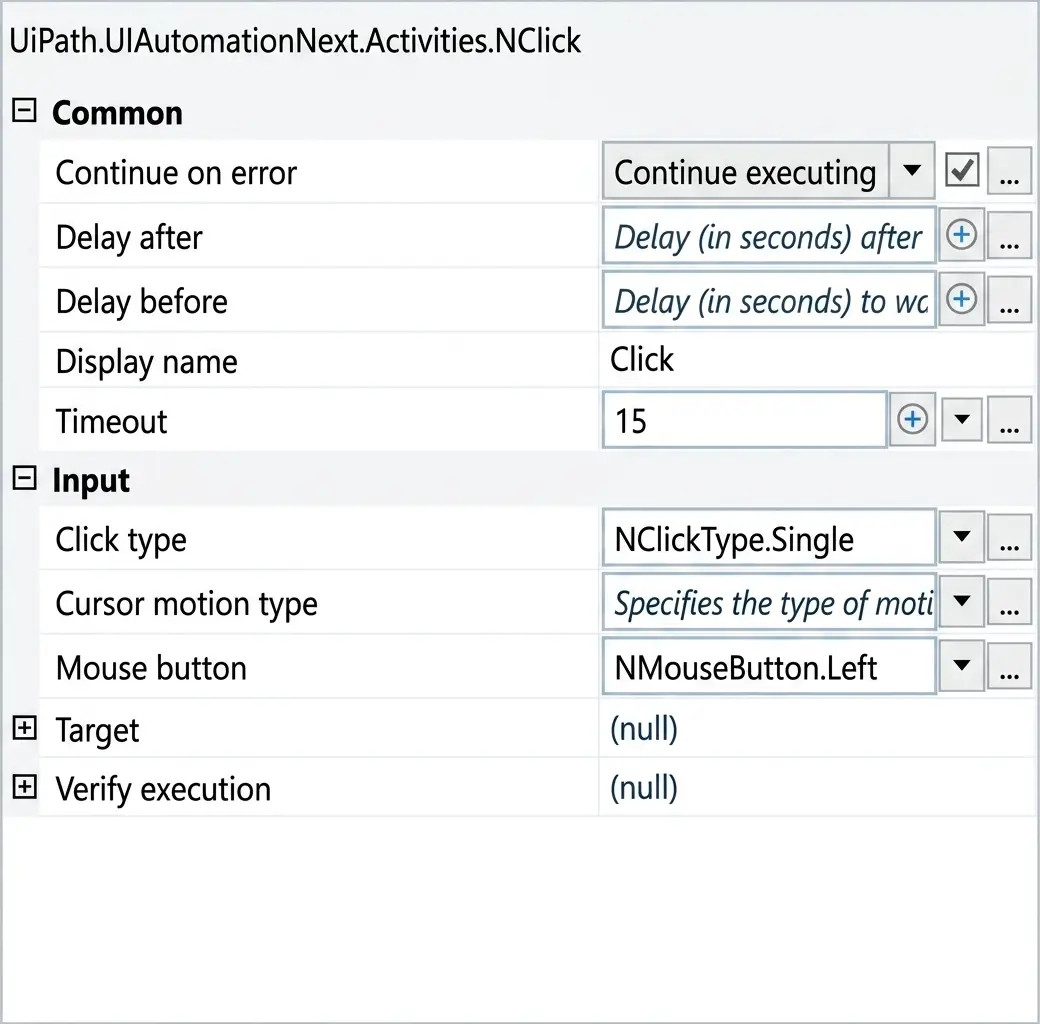
If the target element is not found during execution in Run mode, how long will it take until an error is
thrown (based on default project settings)?-
Option A:Correct
0.15
-
Option B:Correct
0.2
-
Option C:Correct
15
-
Option D:Correct
30
Show Answer & Explanation Hide Answer & Explanation
Correct Answer: C
Explanation
Comprehensive and Detailed Explanation From Exact Extract:
In UiPath, when executing an activity such as Click, the timeout behavior is determined as follows:
If the Timeout property in the activity is set, that value is used.
If the Timeout is left blank, the system uses the default from Project Settings under UI Automation
Modern → Timeout.
In this case (based on the second image):
The Click activity explicitly has Timeout set to 15 seconds.
Therefore, this activity will override the project-level default timeout (which is 30 seconds as seen in
the first image).
Rule Applied:
Activity Timeout > Project Settings Timeout (if defined)
Hence, if the target element is not found, UiPath will wait for 15 seconds, as specified in the activity's
Timeout field, before throwing an error.
UiPath Documentation Reference:
TimeoutMS Property – UiPath Docs -
-
Question 3
Single answerWhen training labels and general fields in UiPath Communications Mining, what is the
recommended approach to training efficiency?-
Option A:Correct
Focus on labels, and general fields will be trained automatically.
-
Option B:Correct
Train both labels and general fields at the same time.
-
Option C:Correct
Train only general fields for faster results.
-
Option D:Correct
Train general fields first, then labels.
Show Answer & Explanation Hide Answer & Explanation
Correct Answer: B
Explanation
Comprehensive and Detailed Explanation From Exact Extract:
The recommended practice in Communications Mining is to train both labels and general fields
simultaneously. This ensures the system learns the relationships and intent expressions effectively.
This approach helps improve the overall model accuracy by leveraging training signals from both
classification and field extraction.
UiPath Documentation Reference: UiPath Communications Mining Documentation – Labeling
Strategy -
-
Question 4
Single answerTo determine the number of characters scraped from a website in an "ExtractedText" String variable,
excluding leading and trailing white-space characters, what should a developer use?-
Option A:Correct
ExtractedText.Trim.Chars
-
Option B:Correct
ExtractedText.Length
-
Option C:Correct
ExtractedText.Trim.Length
-
Option D:Correct
ExtractedText.Chars
Show Answer & Explanation Hide Answer & Explanation
Correct Answer: C
Explanation
Comprehensive and Detailed Explanation From Exact Extract:
To get the character count excluding leading and trailing spaces, .Trim() is used to remove whitespace
and .Length provides the character count. So the correct expression is ExtractedText.Trim.Length.
Trim: Removes all leading and trailing white-space characters.
Length: Returns the number of characters in the string.
UiPath Documentation Reference: String Manipulations in VB.NET – Microsoft Docs
Also validated in UiPath Academy: Developer Foundation Course – String Manipulation Module -
-
Question 5
Single answerWhat functionality does the Step Out action offer when a developer is reviewing a process during
debugging?
-
Option A:Correct
Re-executes the activity which threw an exception.
-
Option B:Correct
Executes activities in the current container and then pauses the execution.
-
Option C:Correct
Executes only one activity at a time and then pauses the execution.
-
Option D:Correct
Steps out and stops current execution.
Show Answer & Explanation Hide Answer & Explanation
Correct Answer: B
Explanation
Comprehensive and Detailed Explanation From Exact Extract: The "Step Out" option in
UiPath Studio’s Debugging toolbar, as shown in the image, is used when debugging a process and
you have stepped inside a function, invoked workflow, or nested container. If you want to exit from
the current container (e.g., a workflow or sequence) and return to the caller
or parent scope, you use Step Out.
It executes all remaining activities within the current container, and once complete, pauses the
execution back at the point where that container was invoked. It does not stop execution, nor does it
re-execute exceptions or pause after every activity (like Step Into or Step Over).
Visual Confirmation from the Image:
The "Step Out" button is highlighted in red, indicating it’s active and available during debugging.
It is grouped alongside "Step Into" and "Step Over," all part of debug control options.
Use Case:
Suppose you're debugging a workflow and step into an invoked file or a "Then" branch. If everything
looks fine, you can use Step Out to quickly exit and return control to the parent workflow without
stepping through every line.
UiPath Documentation Reference:
Debugging in Studio – UiPath Docs -